Preparation for installing ImageKit
The following must be present on your PC before you can use the ImageKit9 ActiveX
1) .NET Framework 4.0: The ImageKit9 ActiveX license
activation program requires .NET Framework 4.0.
Please be sure that .NET Framework 4.0 is installed before
installing the ImageKit9 ActiveX
2) Microsoft Visual C++ 2010 Redistributable Package: This is required by the ImageKit9 ActiveX OCX and DLL files.
* NOTE: For both 1) and 2) above, there are 32bit (x86) and 64bit (x64) versions. Please make sure that you have installed the appropriate 32 bit and 64 bit versions before installing the ImageKit9 ActiveX.
How to install the ImageKit
After downloading the ImageKit, double click the "setup.exe" file and follow the instructions.
Folder structure after installation
After running the ImageKit setup program, the following folders will be created.
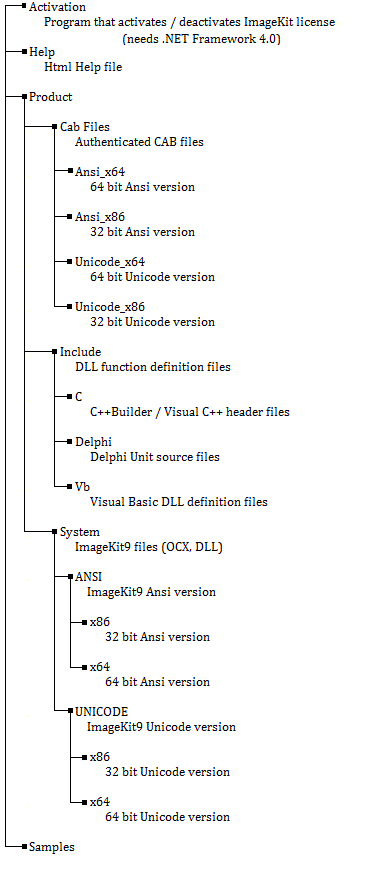
ImageKit9 files:
32 bit Unicode Version
Ik9Com.dll
Ik9Effect.dll
Ik9File.dll
Ik9Bmp.dll
Ik9Dxf.dll
Ik9Emf.dll
Ik9Fpx.dll
Ik9Gif.dll
Ik9J2k.dll
Ik9Jpeg.dll
Ik9Pcx.dll
Ik9Png.dll
Ik9Svg.dll
Ik9SxfP21.dll
Ik9SxfSfc.dll
Ik9Tiff.dll
Ik9TransFile.dll
Ik9Wmf.dll
Ik9Print.dll
Ik9RasToVect.dll
Ik9Scan.dll
Ik9VectCom.dll
32 bit Ansi Version
Ik9ComA.dll
Ik9EffectA.dll
Ik9FileA.dll
Ik9BmpA.dll
Ik9DxfA.dll
Ik9EmfA.dll
Ik9FpxA.dll
Ik9GifA.dll
Ik9J2kA.dll
Ik9JpegA.dll
Ik9PcxA.dll
Ik9PngA.dll
Ik9SvgA.dll
Ik9SxfP21A.dll
Ik9SxfSfcA.dll
Ik9TiffA.dll
Ik9TransFileA.dll
Ik9WmfA.dll
Ik9PrintA.dll
Ik9RasToVectA.dll
Ik9ScanA.dll
Ik9VectComA.dll
64 bit Unicode Version
Ik9Com64.dll
Ik9Effect64.dll
Ik9File64.dll
Ik9Bmp64.dll
Ik9Dxf64.dll
Ik9Emf64.dll
Ik9Fpx64.dll
Ik9Gif64.dll
Ik9J2k64.dll
Ik9Jpeg64.dll
Ik9Pcx64.dll
Ik9Png64.dll
Ik9Svg64.dll
Ik9SxfP2164.dll
Ik9SxfSfc64.dll
Ik9Tiff64.dll
Ik9TransFile64.dll
Ik9Wmf64.dll
Ik9Print64.dll
Ik9RasToVect64.dll
Ik9Scan64.dll
Ik9VectCom64.dll
64 bit Ansi Version
Ik9Com64A.dll
Ik9Effect64A.dll
Ik9File64A.dll
Ik9Bmp64A.dll
Ik9Dxf64A.dll
Ik9Emf64A.dll
Ik9Fpx64A.dll
Ik9Gif64A.dll
Ik9J2k64A.dll
Ik9Jpeg64A.dll
Ik9Pcx64A.dll
Ik9Png64A.dll
Ik9Svg64A.dll
Ik9SxfP2164A.dll
Ik9SxfSfc64A.dll
Ik9Tiff64A.dll
Ik9TransFile64A.dll
Ik9Wmf64A.dll
Ik9Print64A.dll
Ik9RasToVect64A.dll
Ik9Scan64A.dll
Ik9VectCom64A.dll
In order to use the ImageKit dll functions, the ImageKit dll
files must be copied into a folder with a valid path or copied into
the current folder.
Steps following installation
After installing the ImageKit, the following steps are needed in
order to use the ActiveX control in a development container. (When
using only DLL functions, these steps are not necessary).
Adding the ImageKit9 to the development environment
1. In VisualBasic 6.0
a. From the Project (P) menu, select "Components" (O)
b. In the Control tab of the "Components" dialog box, select
"ImageKit9 ActiveX Control (Ansi version only)", "ImageKit9
Thumbnail ActiveX Control (Ansi version only)" and "ImageKit9
WebCamera ActiveX Control (Ansi version only)". Then click the "OK"
button.
2. In Visual C++ 6.0
a. From the Project (P) menu, move the mouse cursor to "Add to
Project" (A) and select "Components and Controls" (P)
b. From the "Components and Controls Gallery" select "Registered
ActiveX Controls"
c. Choose the ImageKit9 *** Control (Ansi) that you want to add and
click the "Insert" button (*** refers to the specific ImageKit9
control name)
3. In VisualBasic.NET, and VisualC#.NET, VisualC++.NET
a. From the "Tools" menu click on "Add/Remove Toolbox Items"
b. Select the "COM Components" tab and then select the ImageKit9
control you want to add (Unicode or Ansi version). Click the OK
button.
* Note: When the ImageKit9 is installed, the ImageKit9 32 bit Ansi
version and ImageKit9 32 bit Unicode version are both automatically
registered. If you would like to use the 64 bit versions, please
register the 64 bit versions.
Registering or Unregistering the ImageKit9
To manually register or unregister the ImageKit9, execute the
following functions from "Run" the Start Menu
(To Register) REGSVR32 "[path]\ImageKit9.ocx"
(To Unregister) REGSVR32 "[path]\ImageKit9.ocx" /U
Where [path] is the path to the ImageKit9 ocx
The same procedure is used to register or unregister the ImageKit9
Thumbnail control and ImageKit9 WebCamera controls.